

01 Jan 2015; Supermarket; -100,00
2015/07/31, Supermarket, -100.00
Step by step:
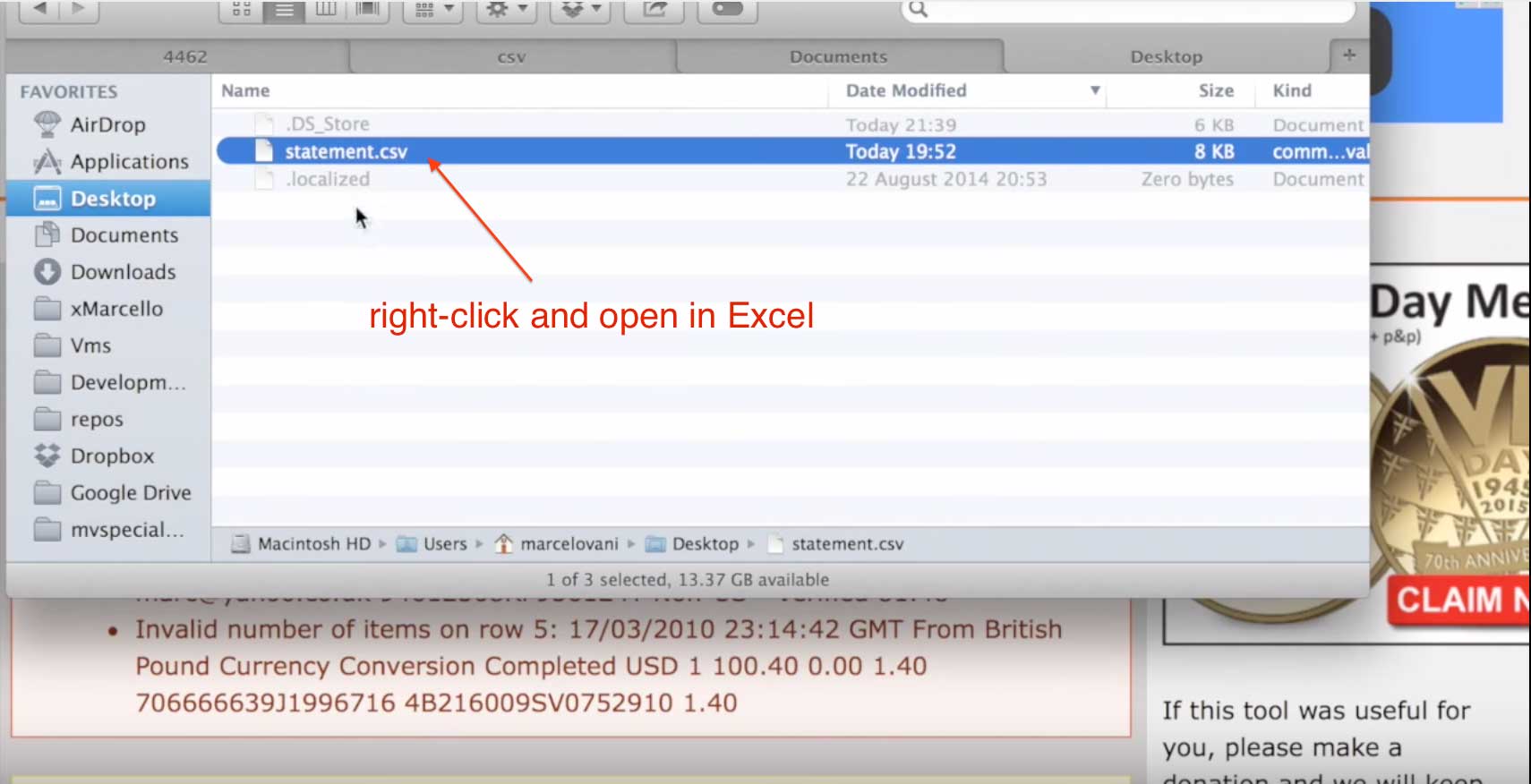
1. Open the file manager and double click the CSV file, or right click and Open in Excel. On this example I am using Open Office on Mac OSX. The options on Windows might be a little different but the principle is the same.
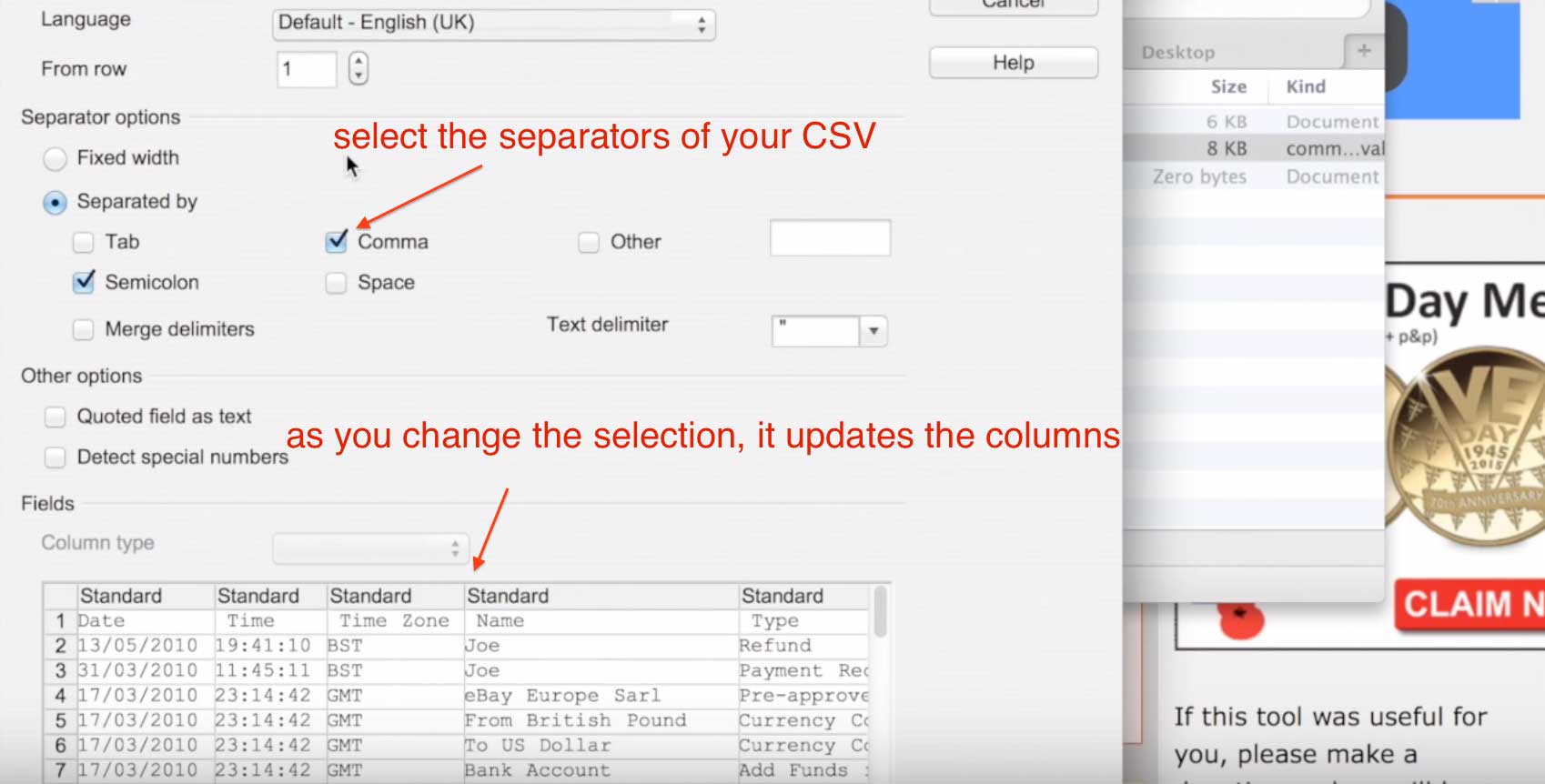
2. The first screen will ask how you want Excel to recognize the field delimiters and text delimiter. You can select one or more, as soon as you click on the options, you will see the effect below.
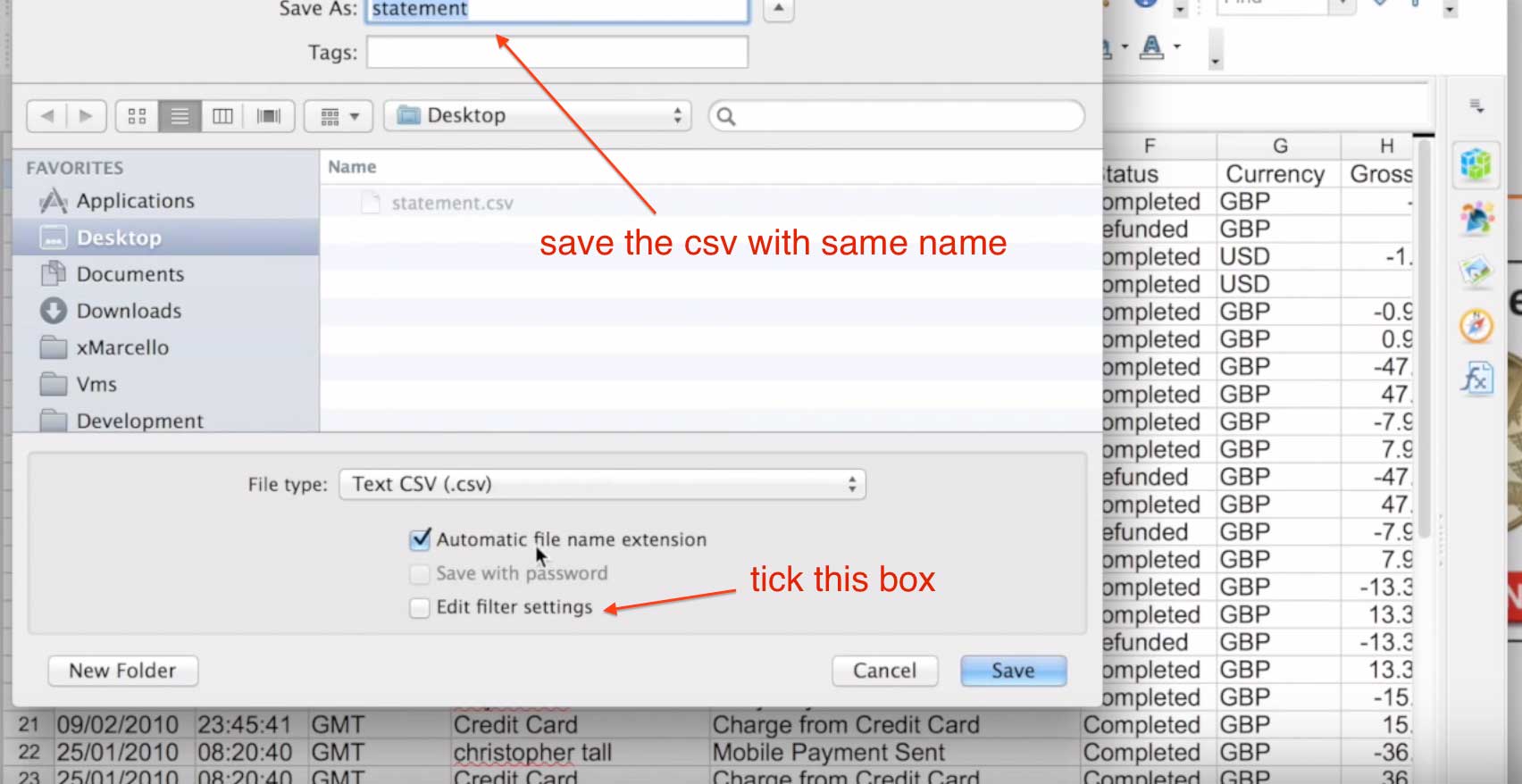
3. Click on the File menu and Save As. Excel will ask you where to save the file. You can either override the same file or save with a different name.
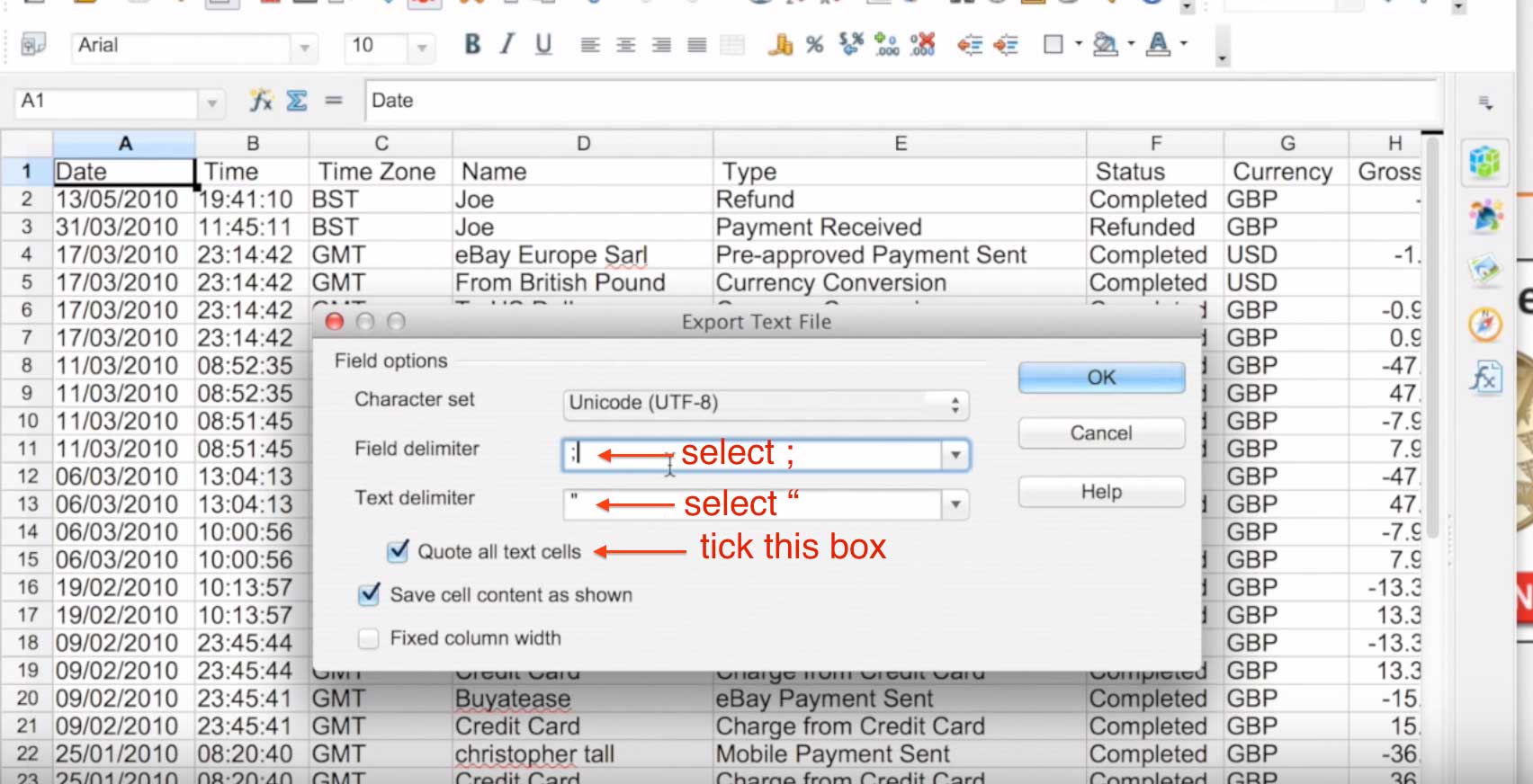
4. When the prompt for field delimiter shows, choose semicolon (;). For text delimiter choose double quotes ("). I also tick the box to Quote all text cells.
Watch the video tutorial
Comments
In reply to When I right click on file by Carlie Risk
Are you using Microsoft Excel? OpenOffie? Numbers?
In reply to Are you using Microsoft Excel by CSV Converter
she said rightclick and 'open with excel'...
In reply to Are you using Microsoft Excel by CSV Converter
On this video its Open Office for Mac, but you will find similar option in Microsoft Excel
I have commas in my data, unrelated to being a delimiter, which Excel exports correctly by enclosing the line in quotes. CSV Converter ignores what is enclosed by quotes and just adds the quotes as data characters. And so every comma becomes a separator, jumbling by fields. What a mess. When opening the csv file back in Excel, there are no prompts to edit text and field delimiters, as user Carlie Risk also experiences. How do I get CSV Convertor to honor standard csv file quotes?
In reply to I have commas in my data, by Patrick McQuillin
The approach of the video using Excel to standardize the CSV is to have all fields enclosed by quotes and separated by semi-colon. Then it won't split on commas.
In reply to I have commas in my data, by Patrick McQuillin
Patrick is absolutely correct! Excel has no prompts to edit text and field delimiters!
I have office 2013. I do not have any of the options you mention re the separators etc. When I open it in excel it opens as normal. Would be handy if you had an excel walk through as its not very clear as it is when non MAC users don't have the options you use/show.
I have no idea what to do. I ran your script. All the fields appeared on your site but the exported QIF file only had a few characters and none of the data. Error said something about date format but the file was just made today and that is not even part of the file?
What is difference between CSV and QIf and can I just change the extension name to import into GnuCash?
In reply to I have no idea what to do. I by Paul Lastname
Hi Paul, I suspect the mapping is incorrect, can you please create an issue https://csvconverter.biz/project/issues and attach your csv so we can debug it
The only way to change these options using Excel is to actually change your Language and Region settings in the control panel in Windows. It cannot be done within Excel itself.
You need to update your information and stop telling people it can be done as you're just plain incorrect.
The most frustrating thing, the legacy site handled these Excel csv files without any issue...
Y'all- if you're using a Windows platform -- I'm using Windows 10 with Office 365 -- go to File > Save As and from the "Save as type" dropdown menu choose CSV UTF-8 (Comma delimited) *.csv option. This enabled my budgeting app (You Need A Budget) to read my bank import file whereas it would NOT read the same file when saved as a different option, "CSV (comma-delimited) *.csv". To be clear, there are MULTIPLE CSV options, at least in my version of Excel; you MUST choose the option that explicitly mentions UTF-8. Hope that helps.
In reply to Definitely does NOT work with by Peter Wood
This solution is done using OpenOffice, its free to download and try
This converter works quite well when working with regular bank accounts. However, I am looking for something that will convert investment accounts to QIF. The current mapping options do not have the heading associated with this. Am I missing something? Thanks.
In reply to This converter works quite by Bea Deecee
Investment accounts are not supported at this occasion
Sorry, but why do we have to edit the file, when it would be simple enough to allow for these kind of settings. It adds a manual step that should be prevented.
Also date formats are on only offered with / as separator, why not in the international format or a self defined format ?
The service looked promising, but will not use it.
In reply to Sorry, but why do we have to by Marcel Gerber
Hi Marcel
The algorithms to detect date format are complex due to the different date formats used by banks. Unfortunately there is no standards in the way the banks export CSVs so we have to try to figure out the data format the best we can, examples:
- Depending on the country, the year comes first
- Depending on the country, the month comes before the date
- Some dates have the month name, some countries have different translation for month names
- Some dates will be separated by / or - or .
Also, the lack of standards is not only for dates, the algorithms also try to detect:
- The line endings (this varies depending of operating system i.e Windows, Mac or Linux are all different
- Field separators can be , or ; or anything else
- Fields are sometimes wrapped by quotes, some times they aren't
There are also other edge cases, which makes it impossible to support every CSV. We are always improving the algorithms and if you have a CSV that is not being converted, feel free to create a Bug issue and attach the CSV for investigation.
The recommended manual step helps to normalise the CSV by having a standard date format, add quotes on all fields and add the same field separator on all rows.
I'm trying to do credit card transactions. The mapping looks right - except that Quicken is interpreting everything as a credit/payment. The payments are right, but all the charges are debits. I suspect it's the minus signs before the amounts that moneyspire is adding to the csv file. I'm not sure how to flip them.
In reply to I'm trying to do credit card by tzina
Hi Tzina
On the thrird step, there is a Checkbox: This is a Credit Card statement
Make sure this is ticked for Credit card statements.
Regards,
Marc
In reply to I am having a lot of problems by John Hall
Hi John, there are many different possible reasons. Due to the fact that CSV files do not have a strict format, it is not easy to give explanation whithout manually looking into each case.
With time, we have added more and more logic to deal with these variations.
What I suggest, is that you create an issue (Bugs & Issues menu) and attach the CSV, so we can check.